

Meta Business Verification is one of the most important steps for businesses using Facebook, Instagram, Messenger, and WhatsApp to market their products, communicate with customers, and manage their online presence. Whether you’re running Facebook advertising campaigns, setting up WhatsApp Business API, managing multiple business assets, or looking to establish greater credibility with Meta, completing Meta Business Verification helps confirm that your business is legitimate and authorized to operate under its registered identity.
Despite its importance, many businesses struggle with the verification process. Some are unable to locate the verification option inside Meta Business Manager, while others submit their documents only to receive a rejection without fully understanding the reason. In most cases, the problem is not the verification process itself but inconsistencies between business registration records, website information, domain ownership, and the details configured within the Meta Business Portfolio.
The good news is that Meta Business Verification is usually straightforward when your business information is properly prepared. By understanding what Meta reviews, which documents are accepted, and how the verification process works, you can significantly improve your chances of approval on the first attempt.
In this complete Meta Business Verification Guide, you’ll learn:
Table of Contents
By the end of this guide, you’ll have a clear understanding of the entire verification process and the exact steps required to successfully verify your business on Meta.
What Is Meta Business Verification?
Meta Business Verification is a process designed to confirm that a business is legally registered and authorized to represent itself on Meta’s platforms.
When Meta reviews a verification request, it is essentially asking one question:
“Can we confidently confirm that this business exists and that the person managing these assets is authorized to represent it?”
To answer that question, Meta evaluates several pieces of information.
These typically include the legal business name, registered address, website ownership, email domain, business phone number, and official registration documents issued by a government authority.
Verification helps Meta reduce fraud, prevent impersonation, and maintain trust across its ecosystem.
For legitimate businesses, verification provides an additional layer of credibility and may be required for access to certain Meta products and features.
Do You Need Meta Business Verification?
This is one of the most misunderstood topics surrounding WhatsApp Business API and Facebook Business Manager.
For many years, businesses believed verification was required before they could scale WhatsApp messaging.
That is no longer the case.
Meta removed the requirement for Business Verification as a prerequisite for increasing WhatsApp messaging limits. Businesses can now increase messaging capacity by maintaining a strong quality rating and engaging with a sufficient number of unique users.
However, that does not mean verification has become irrelevant.
Many advanced business features within Meta’s ecosystem still require verification, and businesses operating at scale are generally encouraged to complete the process.
Even when verification is not mandatory, it often improves account credibility and reduces friction when accessing additional Meta services in the future.
Before You Start: Preparing Your Business for Verification
One of the biggest mistakes businesses make is clicking “Start Verification” before reviewing their information.
- Meta does not only review documents.
- It reviews consistency.
- Think of your verification request as a puzzle.
- Every piece should tell the same story.
- Your website, business registration records, company details, phone number, email address, and domain ownership should all align.
- Before proceeding, review each of the following areas carefully.
Make Sure Your Legal Business Name Is Consistent Everywhere
The name displayed in your Meta Business Portfolio should match the name shown on your registration documents exactly.
This sounds simple, but it is one of the most common reasons applications fail.
For example, if your legal registration states:
ABC Technologies Private Limited
but your website displays:
ABC Technologies
Meta may view those as different entities.
The safest approach is to use the exact legal name found on your registration documents.
Review Your Website Carefully
Your website plays a major role in verification.
Many businesses focus heavily on uploading documents while ignoring their website.
Meta reviewers frequently examine company websites to confirm that the business appears legitimate.
Your website should clearly display:
- Company name
- Contact information
- Business email address
- Physical business address (if applicable)
- Privacy Policy
- Terms and Conditions
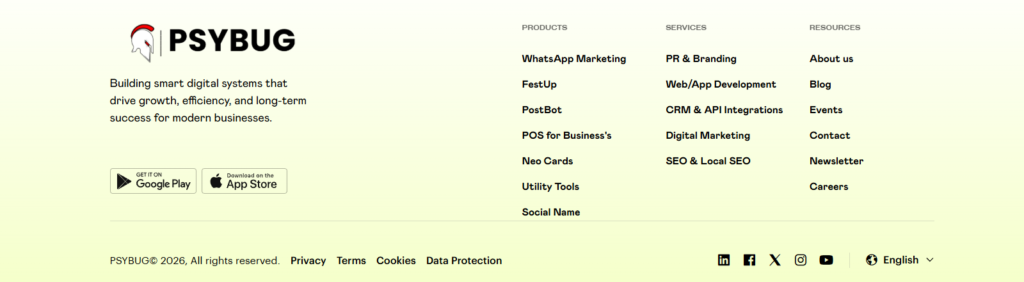
Most importantly, company information should be visible within the footer.
The details displayed on your website should match the information contained within your registration documents.
Use a Professional Business Email Address
Whenever possible, use an email address associated with your business domain.
For example:
or
Domain-based email addresses help establish legitimacy and often simplify the verification process.
While free email providers may work in some cases, professional domain emails generally create a stronger trust signal.
Gather Your Business Documents in Advance
Different countries issue different forms of business registration.
Meta accepts a variety of official documents depending on the jurisdiction.
Examples include:
- Certificate of Incorporation
- Business Registration Certificate
- Trade License
- VAT Registration Certificate
- Tax Registration Certificate
- Government-Issued Business License
- State Registration Documents
- Chamber of Commerce Registration Documents
Businesses in India may use GST Registration Certificates, while businesses in other countries may use equivalent tax or registration documents.
The key requirement is that the document must be issued by a recognized authority and clearly identify the business.
Step-by-Step Guide to Meta Business Verification
Now that your business information is prepared, you can begin the actual verification process.
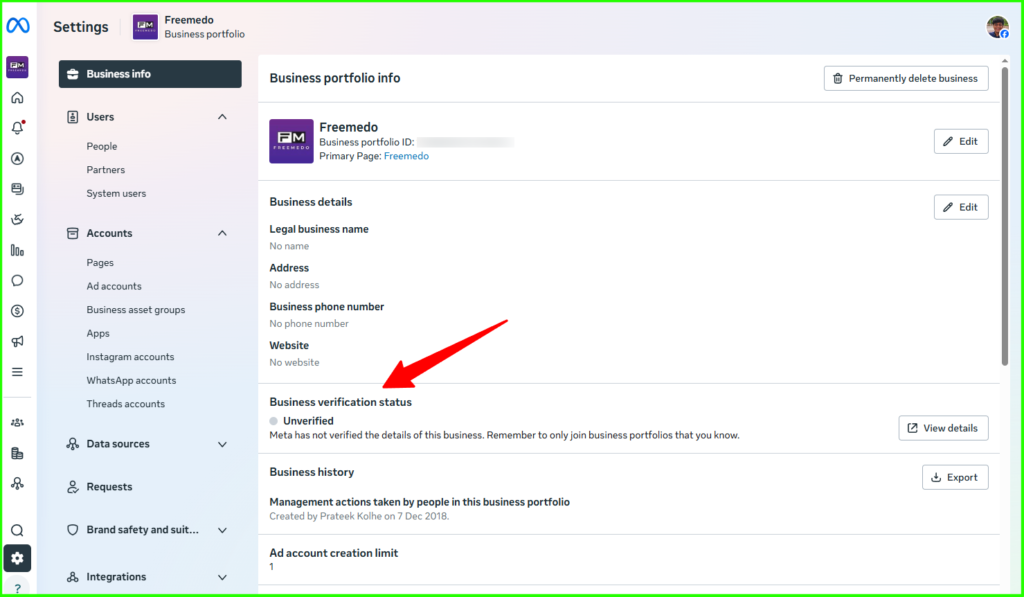
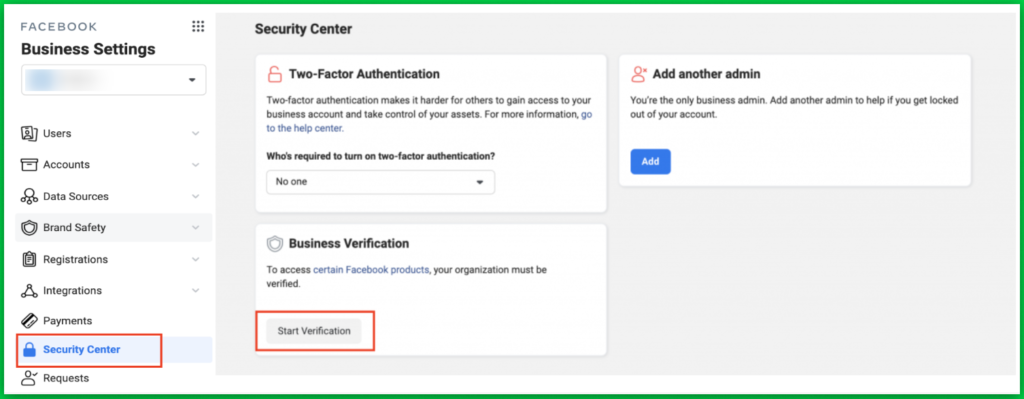
Step 1: Access Meta Business Manager
Log in to your Meta Business Manager account.
Navigate to:
Business Settings → Security Center
The Security Center serves as the central location for verification and account security settings.
This is where you’ll find your current verification status.
Step 2: Review Your Verification Status
Inside the Security Center, Meta will display one of several statuses.
If your business is eligible, you’ll see the option to begin verification.
Some businesses may see a message indicating that they are not currently eligible.
This usually means the account does not yet require access to a feature that depends on verification.
It does not necessarily indicate a problem with the account.
Step 3: Begin the Verification Process
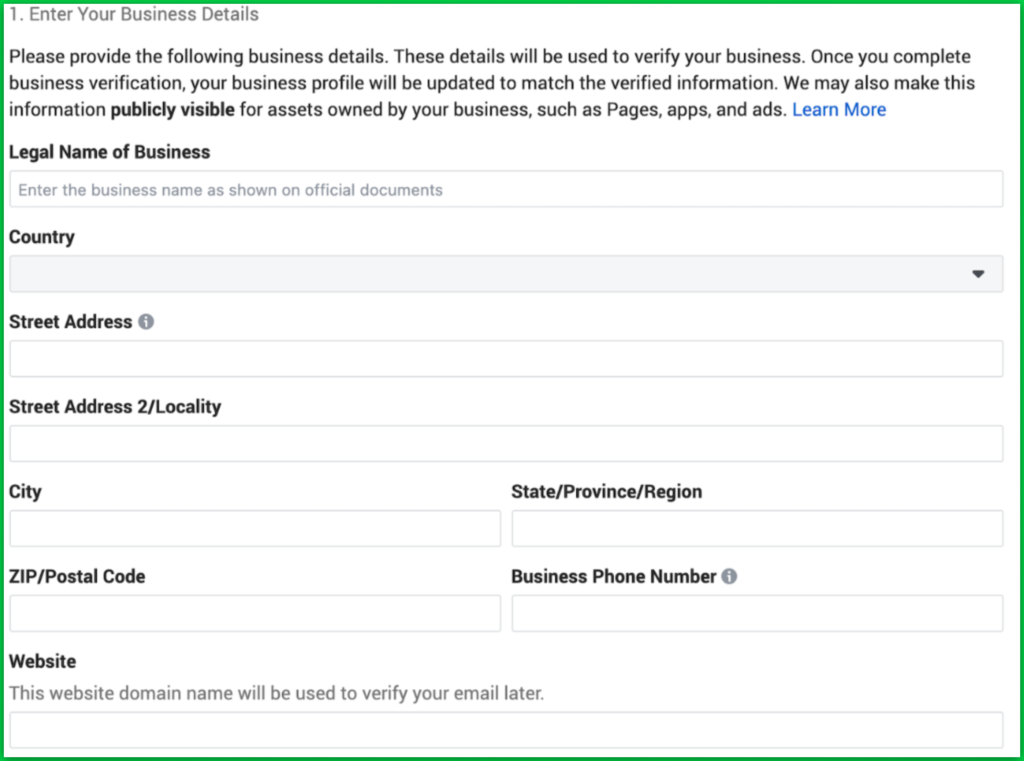
Click the Start Verification button.
Meta will begin collecting information related to your business.
You’ll be asked to enter details including:
- Legal Business Name
- Registered Address
- Phone Number
- Website URL
Take your time during this stage.
Even small inconsistencies can create unnecessary delays later.
Step 4: Select Your Business
Meta may attempt to locate your business automatically using public databases.
If your business appears in the search results, select the matching record.
If no match appears, choose the option indicating that none of the listed businesses match your organization.
You can continue manually.
Step 5: Choose a Verification Method
- Meta typically offers multiple verification methods.
- The options available may vary depending on your region and business profile.
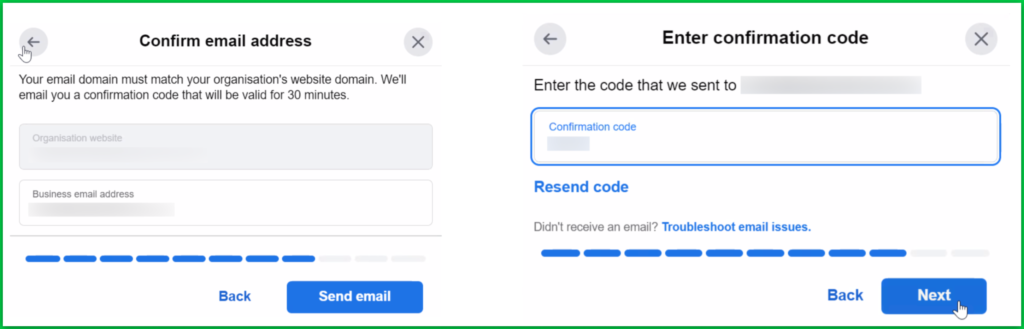
Email Verification
This is often the fastest option.
Meta sends a verification code to an approved business email address associated with your organization.
After entering the code, you can continue the process.
Phone Verification
If available, Meta can send a verification code through SMS or an automated phone call.
The phone number must generally be associated with your business records.
Domain Verification
Domain verification confirms ownership of your website.
This option is particularly useful for established businesses that already manage DNS records.
Most organizations complete domain verification by adding a DNS TXT record provided by Meta.
Step 6: Upload Supporting Documents
Meta will request documentation supporting the information you’ve provided.
This is the stage where many applications succeed or fail.
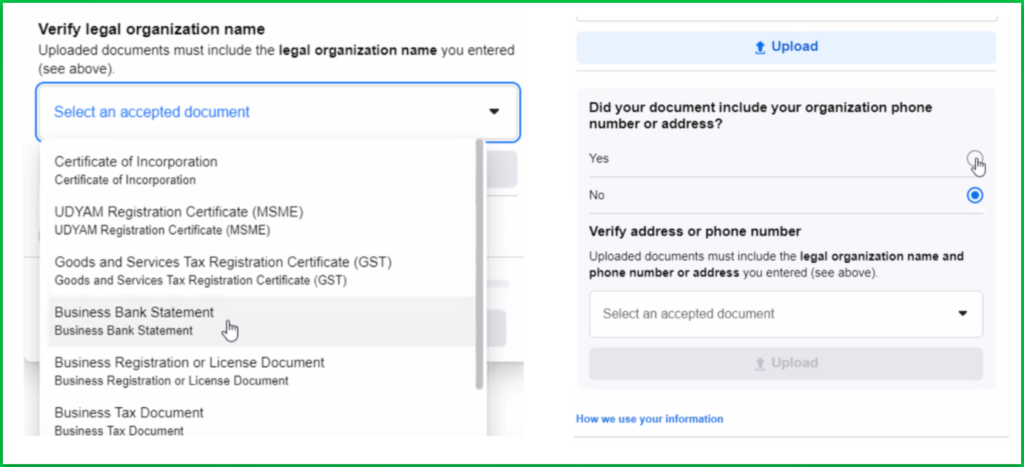
Documents should be:
- Current
- Unexpired
- High resolution
- Full color
- Unedited
- Fully visible
Avoid screenshots whenever possible.
Use original PDF files or high-quality scans.
Step 7: Submit Your Application
After reviewing all information, submit the verification request.
Once submitted, Meta begins the review process.
Depending on the complexity of the application, reviews may take anywhere from several minutes to two weeks.
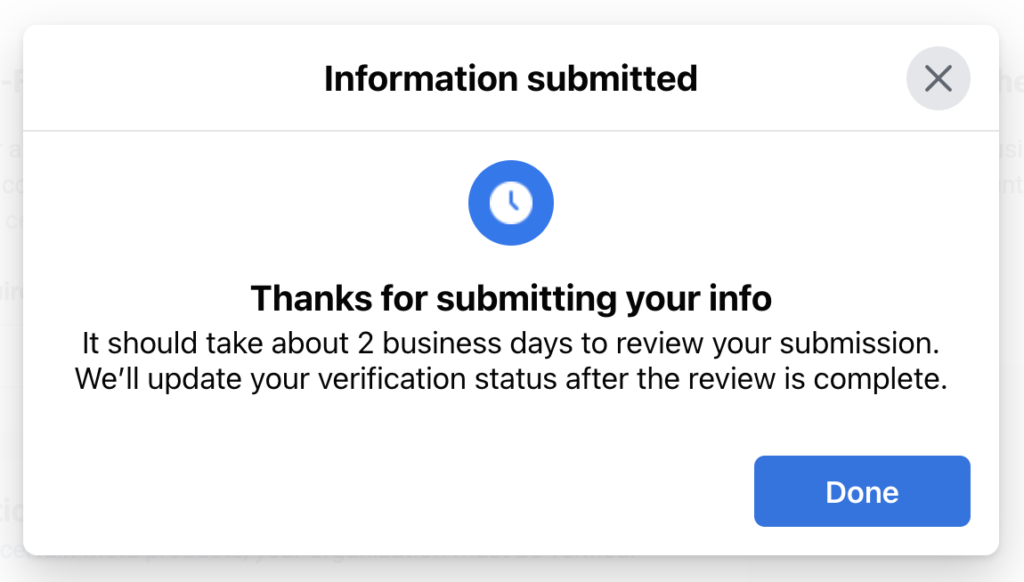
Wait for Meta’s review
- After submission, Meta will review your application.
- Verification may take anywhere from 10 minutes to 14 working days.
- Once the review is complete, Meta will notify you of the outcome.
- You can also monitor your verification status at any time from the Security Centre.
Important Notes
- The uploaded document must be clear, in color, and display the entire document without any cropped or obscured sections.
- All submitted documents must be valid, current, and unmodified. Expired, altered, or edited documents will not be accepted.
- Wati can assist with the Business Verification process, but the final approval decision is made solely by Meta.
Need help?
- If you face any issues, book a call with our expert.
Why Meta Rejects Verification Requests
Most verification failures are not caused by missing documents.
They are caused by inconsistencies.
A business registration certificate may show one address while the website displays another.
The company name may differ slightly across platforms.
The domain email may not match the organization being verified.
Meta’s review systems are designed to identify these discrepancies.
Before resubmitting an application, carefully compare:
- Website information
- Registration documents
- Business Manager details
- Contact information
- Domain ownership
Everything should match.
What to Do If Your Verification Request Is Rejected
A rejection does not mean your business is ineligible.
In many cases, businesses are approved after correcting minor issues.
Start by identifying the likely cause.
Review your website.
Review your footer information.
Review your uploaded documents.
Review your company name formatting.
Once corrections have been made, you can submit a new verification request.
Many businesses receive approval on their second attempt.
When Should You Work With a Meta Business Partner?
Some businesses have everything configured correctly but still encounter verification issues.
This is especially common when setting up WhatsApp Business API.
In these situations, working with a Meta Business Partner can be beneficial.
Business partners frequently assist organizations with:
- Meta Business Manager setup
- WhatsApp Business API onboarding
- Domain verification
- Business verification preparation
- Messaging infrastructure
- Compliance reviews
Examples include Sendpop by PSYBUG, AiSensy, Interakt, WATI, and other Meta-aligned WhatsApp solution providers.
While no provider can guarantee approval, experienced partners often identify issues that business owners overlook.
Suggested Image
Image: WhatsApp Business API dashboard
Caption: Many businesses work with Meta Business Partners to simplify verification and WhatsApp API onboarding.
What Happens After Verification?
Once your business is verified, you can focus on building communication channels that drive growth.
For many organizations, the next step is WhatsApp Business API.
WhatsApp has become one of the highest-converting communication channels available today.
Unlike traditional email marketing, WhatsApp messages often achieve significantly higher open rates and engagement.
Businesses use WhatsApp to:
- Generate leads
- Nurture prospects
- Send promotional campaigns
- Automate customer support
- Recover abandoned carts
- Schedule appointments
- Deliver transactional updates
Managing these conversations manually quickly becomes difficult.
This is where platforms like Sendpop help.
Sendpop enables businesses to automate WhatsApp communication through AI-powered workflows, broadcast campaigns, shared team inboxes, chatbot automation, customer segmentation, and campaign analytics.
Instead of managing hundreds of conversations individually, businesses can automate large portions of their communication while maintaining a personalized customer experience.
Meta Business Verification is ultimately a trust-building process.
The businesses that get approved quickly are not necessarily the largest businesses. They are the businesses that present a consistent identity across their website, documentation, contact information, and Meta assets. If you prepare your business properly before applying, the verification process is usually straightforward. And if you encounter difficulties, experienced Meta Business Partners such as Sendpop, AiSensy, Interakt, and WATI can often help identify issues and streamline the setup process.
Verification is not just about unlocking features. It is about building a solid foundation for advertising, customer communication, and long-term growth across Facebook, Instagram, and WhatsApp.